Is Your Brand Trustworthy?

May 16, 2009

This week I attended an event put together by the American Marketing Association (AMA), Tampa Bay Chapter, in which Todd Taylor, Area Director for FranklinCovey, was giving a presentation on  “The Speed of Trust”. The presentation was based on the new book by the same name, authored by Stephen M. R. Covey, the son of famous author of “Seven Habits of Highly Effective People”, Stephen R. Covey.

I haven’t read the book, but the content of the presentation was interesting and provided some food for thought. The premise is that people do business with companies they trust. Employees are more productive if they work in an environment that feels trustworthy. Company’s costs go down when trust is rampant throughout the organization, and customers come back to do more business with you if they feel they can trust you.

Here are some of the main ideas behind The Speed of Trust:

Five Waves of Trust

Trust is like a drop in the water that creates waves reaching out, ever expanding. This is the core message from Covey’s trust theory, described as 5 waves of trust:

  1. Self: the confidence we have in ourselves, how we set and achieve our goals, our ability to inspire trust in others.
  2. Relationship: our behavior towards the people we interact with (spouse, co-workers, friends, etc.) and our ability to expand trust to the other people in our lives.
  3. Organization: this is how leaders can generate trust throughout the organization, how people interact during work and the impact trust has throughout the company. This is a key principle for managers, on how they lead their teams and inspiring them.
  4. Market: your organization’s reputation in the market as a trustworthy company to do business with.
  5. Societal: contributions you and your company make to the community and the world.

For a great overview, check out the video below.

Four Cores of Credibility

These are the four factors that create credibility:

  • Integrity: honesty, if you act according to your values
  • Intent: your motives, your agenda
  • Capabilities: the abilities we have that inspire confidence
  • Results: our track record, our history of accomplishments

It’s interesting to note these four “cores of credibility”, as Covey calls them, and look back at why people do business with you or your company. Better yet, think about the people YOU trust and why is that so. That mechanic you take your car to because he’s the only one that you feel will give you the correct diagnosis and pricing. The accountant you go to when you need to get your taxes done. Why do we trust people? The “four cores” above are the summary of what we go through as we think of trust.

Thirteen Behaviors

As if five waves and four cores weren’t enough, we’re given 13 behaviors. These are the behaviors that trustworthy people follow and that you should too if you want to increase your ‘trust index’.

1. Talk Straight
2. Demonstrate Respect
3. Create Transparency
4. Right Wrongs
5. Show Loyalty
6. Deliver Results
7. Get Better
8. Confront Reality
9. Clarify Expectations
10. Practice Accountability
11. Listen First
12. Keep Commitments
13. Extend Trust

Seems obvious, right? But are you really behaving in a trustworthy manner? And how can you influence your team, your department, your company to start practicing these behaviors? This is the question you should be asking yourself.

Marketing Trust

As marketers, we tell stories. Our stories are told via our website, our emails, our presentations, our product collateral, and with every other customer touchpoint. By understanding how trust is created, disseminated, and by practicing the thirteen behaviors in our campaigns (honoring opt-out requests, being upfront about product shortcomings, being honest in the description of product features, etc.) we can positively impact our company’s business.

Helpful links

Some helpful links for those interested in learning more about the “Speed of Trust” book and concepts:


Tools of the Trade: Webinars and Online Presentations

April 29, 2009

Webinars

Webinars or webcasts, as they are sometimes called, have increased in popularity and in effectiveness within the past 5 years or so. A common tool for today’s marketer they provide a great way to reach a large number of people with your message.

I believe in three simple rules for a successful webinar program:

  1. Understand and map your needs
  2. Choose the appropriate webinar platform
  3. Put in place a well documented webinar process

 1. Understand and map your needs

First and foremost, you should list out all the ways in which your company will be using webinars and the platform. For example, typical uses of webinar software often fall into one or more of these categories:

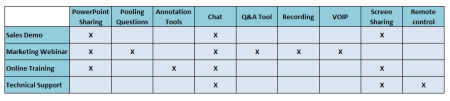
  • Online sales demos and presentations: a sales rep shares a PowerPoint presentation and his desktop screen while walking through a product demonstration.
  • Marketing presentations and educational sessions: usually involving a moderator and a speaker, sharing PowerPoint slides and often making use of polling questions and maybe annotations to engage the audience.
  • Online training: an instructor sharing PowerPoint slides, maybe sharing the desktop screen and using arrows, circles, and other annotation tools to illustrate a point.
  •  Technical support: a technical support representative with a customer on the phone where the customer shares control of his desktop and the rep troubleshoots.

OK, before you tell me that training and tech support are not part of the traditional definition of webinar, please bear with me for a moment and I’ll explain it in time.

Depending on the category, or type, of webinar usage you will be able to list out all the features you need. Each webinar platform has a set of features that can be useful or useless and why pay a premium if you don’t care whether circles can be drawn on the screen? An interesting way of looking at it is by making a grid on a sheet of paper or using a spreadsheet comparing your needs versus the features required.


Sample requirements grid for webinar platform selection

Sample requirements grid for webinar platform selection


Why list technical support and online training? Although often outside the marketing/sales spectrum, there are tools out there that may not only help with webinars but can also help with the needs of the tech support and professional services departments. Why not kill three birds with one stone? So don’t discard them completely until you have spoken to these departments and determined whether they should be included in the requirements grid or not.

2. Choose the appropriate webinar platform

Now that you have listed how you will be using webinars, you’re ready to investigate and fend off vendors. In your first conversation with a vendor, you should list all the uses (maybe even share the grid with them) for the tool you want to buy and ask for a demo showcasing the specific requirements you have. This way you make sure you control the sales process and don’t waste time with a tool that does not have a feature you consider critical.

Some of the most used webinar providers are:

          Microsoft LiveMeeting

          Adobe Connect

          WebEx

          GoToMeeting / GoToWebinar

          On24

          Lotus Sametime

If you do a quick Google search many others will show up, including free ones like:

          Yugma

          Dimdim

The Web Conferencing Council has some good information on webinars and has recently released a whitepaper comparing some of them.

One other thing to consider is the teleconference provider, especially for your marketing webinars that are likely to have dozens of attendees. Some webinar providers have their own conferencing service (GoToMeeting / GoToWebinar offers one for free and Adobe Connect users needs to use Premiere Global for an extra fee), so you should ask the question during your evaluation. The price for phone conferencing will increase the overall costs for your webinars.

3. Put together a well documented webinar process

Now that you have the tools in place, you should think carefully about the procedure to be followed for webinars, especially for the marketing webinars where multiple attendees are involved. Online lead generation events are more effective when there’s a formal procedure that is followed every time, preventing occasional glitches from happening. Thing of the following:

          When should a new session / room / webinar (the terminology varies according to the platform) be reserved?

          How will registrants get login information? Some webinar providers handle this process for you.

          Do polling questions need to be prepared in advance and uploaded?

          Do slides need to be prepared in advance and uploaded?

          Will registrants be contacted by email or phone prior to the webinar to ensure attendance?

          Will the online event be recorded? Should any special steps be taken in this case?

          Should a moderator make opening remarks and help with Questions and Answers?


These are only some of the questions that you should ask yourself as you are setting up your company’s webinar program.

Webinars, webcasts, online events, and whatever other name you have for this can be expertly handled once you know your requirements, have done vendor due diligence, and setup a process that can be followed and standardized.

I hope these simple tips will help you with your webinar initiative!


How Good A Boss Are You Really?

April 9, 2009

If you want to see how you (or your new boss) stack against top technology CEO’s, check out Glassdoor.com for an interesting ranking.

The site not only lists top executives based on approval ratings but also shows you reviews that give you some more specifics of the person, the company, and what it feels like working there. One of the more interesting features is the ability to search for salaries paid at a specific company. Insider information is always good when planning your next career move!


Get Hired in Marketing

April 6, 2009

Want a marketing job? Then you have to first understand the rules of the game.

I was recently hiring a marketing coordinator for my company and once again it became obvious to me that most candidates do a poor job at interviewing. So here’s my contribution, albeit a small one, to those of you who are looking for new jobs.

Before you go out on an interview,  you need to understand how hiring works. Then you can craft a great resume, prepare to ace the interview, and come up as a top candidate for the job.  Keep in mind the following factors and you’ll be a step ahead of other candidates.

Risk is the most important factor:

The whole hiring process has one goal, and that is to reduce the risk of hiring a bad candidate. Companies spend a lot of time and money when they need to hire someone and spend even more when they make a wrong hiring decision. So every step is designed to reduce the risk the company and the hiring manager face. Knowing this will give you tremendous advantage, as most people are concerned with making sure they look good (either on their resumes or during the interview) and not with what the company needs. Is basic marketing (you can only sell if you know what the customer wants), but very few people stop to think about it.

As you are asked questions during the interview, managers are not looking for a right answer, they are looking for clues that will tell them whether you are high or low risk. So you need to make sure that when you are answering questions during an interview, your answers are focused on lowering that perceived risk.

Example: for a question like “do you have experience with trade shows?” (which is not necessarily a very good question to begin with, but let’s leave it like this for now) you could answer:  “yes, I have experience with trade shows and have handled many throughout my career”. The problem with this answer is that is very limited. OK, you have experience, but how much? What else have you dealt with in a trade show environment that can tell me that I will be able to trust you with my events? If you leave the hiring manager wondering whether you have all the experience he needs from someone in the position they are hiring for, then you haven’t done a good job at lowering the risk level.

A better answer is: “not only I have experience with trade shows, but I’ve been involved in multiple types of shows, from small user groups that only required a tabletop display up to big conventions where we used our 20×20 booth. In the last show [name] that I managed I had to negotiate with the show organizer, involve the transportation company, and come up with some creative ways   to get our stand up on time, which gave me a much better understanding of how trade shows work”. Aha! This not only answers what was asked, but goes a step beyond and touches upon the real reason for the question in the first place, giving detailed insight as to the type of experience and situations the candidate faced, significantly lowering the risk of hiring someone inexperienced. The Hiring Game

Every line on your resume, every answer you give during an interview, and every contact you have with the company needs to be focused on lowering the perceived risk. The little things you do will add up in the end and make you stand out.

You only need to be 2% better:

 You don’t need to be a superstar. If you’re 2% better than the next candidate, you’re already ahead. How do you do that? By keeping in mind the ‘risk’ factor and tailoring all your answers to help the hiring manager lower the risk you represent. Since most candidates think about answering the question and just the question, they don’t realize that there’s more to it. The question about trade shows above, for example. What is the risk the company faces? Well, if events are a big part of their marketing budget, then they need someone they can count on to manage that side of the business. If the position you are interviewing for will have that responsibility, then you shouldn’t just answer “yes, I’ve dealt with trade shows in the past” because that really doesn’t tell me anything. Go beyond the simple question and expand your answer (but briefly, of course) to get extra points.

Results are more important than ever

The typical advice of headhunters is to make sure you add accomplishments to each job description. Now more than ever you have to ensure your resume is results-oriented, and that during the interview your answers touch upon results you achieved. Check out a recent post on Marketing Today website about it.

It’s not over when the interview is over

After the interview you’re not off the hook. Another person is now sitting on that same chair, trying to do his best, just like you did. How do you keep yourself ahead? By continuously showing that you’re the best candidate. Send written thank you notes to EVERYONE that you dealt with. From the receptionist to the hiring manager. And hand write the thank you notes, don’t email them. Why? Because most people don’t do it. You’ll be seen as more professional and will stand out. You should also be checking for industry related news and is a good idea to email the hiring manager a link to an interesting article or press release that might be relevant to the company, this shows you’re up to date on the industry and is really interested. Some of these simple gestures go a long way towards helping you land the job.


The Productivity Paradox: Short Term or Long Term Effect?

March 15, 2009

I’ve been thinking a lot lately on how to recover time I’ve spent in tasks not directly associated with what I consider productive, i.e. email, admin stuff, and doing everything else but those tasks that will help me achieve my goals. Why do I do those things, you might ask, and I reply that is because sometimes you just can’t say no. In a corporate environment, sometimes (some of you may argue that’s ‘all the time’) you get pulled out of your daily activities and asked to do something unplanned, like help out the sale manager with a powerpoint presentation, interview a new candidate for that admin position or even attend a meeting called last minute by your boss. As much as you hate it, sometimes you just have to adapt to the situation and juggle things around, add another monkey to your back and hope it doesn’t brake your neck. 

But I digress… what I’ve been focusing on for the past few posts is on how you can use tools you already have at your disposal (like MS Outlook for most corporate users) to become more effective and productive. The use of such tools, however, can be seen as a short-tem fix instead of a long-term effect. If you become better at managing your schedule, let’s say, will that help you gain back time you have wasted up until now and use now the time you’ll be saving in more productive tasks? Or is the time you have already wasted considered “sunk time” and will never be recovered?How productive are you?

On a recent blog post Jason Cohen, from Smart Bear Software, tackled this issue and argued that if you become 1% more productive each day you won’t necessarily be able to add all this productivity up and claim at the end of the month that you’ve now achieved 30% more productivity (the claim of 1% translating into cummulative productivity was made by Alfred Lin, Zappos COO, in his blog post). This is an interesting concept, because a lot of people start using GTD and similar methods to become more productive and it is comong that they end up not implementing the full method but are still satisfied because they feel they are now a bit more productive each day. So, in the end, if you are only a bit more productive can you claim an overall big productivity improvement?

What I will argue is that whatever the correct answer to this question, it is missing the point. The important thing is not to decide whether you can become 1% more productive each day, but is your productivity being applied to achieve your goals? Before you attempt to increase your productivity, first ask yourself: do you have a short-term or a long-term goal?

Short-term productivity is exactly that, the 1% each day, the ability of now to clean up your inbox in 30 mins instead of 45 mins, the extra 5 mins you gained because you are now running effective meetings, and the satisfaction that your day is now being spent on things that matter. 

Long-term productivity is the focus on your overall goals, how you spend your time, and what do you need to change in your daily habits that will let you achieve your objectives in the amount of time you have available. We all have goals and work hard to accomplish what we set forth but are we being realistic? Are we startegizing and planning what our priorities will be? Do we even know how much time we need to spend on specific tasks and whether those tasks will get us to where we want?

Jason, again, touched upon a very powerful first step for anyone interested in the long-term productivity plan. He talked about assessing your time and noting how you are spending your time during the day and week. Peter Drucker, in his book “The Effective Executive” spent the majority of his book discussing time management because it is such an important concept to tackle if you want to become more effective. Drucker suggested “know thy time” as a precursor to any adjustment you will have to make to your daily routine. This simple yet powerful principle is essential to help you better understand how you are spending your efforts. Take notes of how you are spending your time, then go back and ask yourself:

  1. What tasks are taking most of my time during the day and week?
  2. Which tasks should I be working on that will lead me to accomplish my goals?
  3. Are those tasks in my first list matching the ones in my second list?

Obvious, but not necessarily easy. Most of your time should be spent on those tasks that are directly associated with your goals, and if you are not spending most of your time on those, than no matter how productive you become every day (be it 1%, 5% or 10%!) the amount of productivity increased won’t matter if you are not focusing on what’s important.

Getting stuff done isn’t the goal. Getting the RIGHT stuff done, is.

Once you’ve identified what are the right tasks, the ones where you should spend more of your time then you can start thinking about ways to become more productive. This is long-term planning. If you always know how to spend your time, then when those unplanned events happen, you won’t be thrown off balance trying to recover your time.

Don’t focus on small or big improvements. Decide what you need to improve first.


Better Time Management with Smart Calendars

March 12, 2009

Use your calendar to your advantage

Smart calendar done right

Using calendar the smart way

I’ve noticed throughout the years that if something is not on my task list it won’t get done. Yes, I may remember the task from time to time and I write it down in a yellow sticky note, but getting it into my task list (be it in Outlook where I centralize everything, or in a paper notebook that I used back in the day) triggers some type of psychological commitment that is not the case otherwise. And besides, once is in my task list (I use MS Outlook to manage my tasks, see my post on Task Management with Outlook), I can then prioritize and classify accordingly.

But the other side of getting stuff done and being effective at managing your time has to do with meetings.  Seth Godin says there are three types of meetings: 

  • Information: designed to inform
  • Discussion: where the leader wants feedback
  • Permission: where the other side has the power to say ‘yes’ or ‘no’


Although I think he simplified a bit (I can think of at least 3 other types that are not covered there, but that’s a post for another time), I get his point. Unless you know what the meeting if for, you won’t be prepared for it, and you won’t have a very productive meeting. Unproductive meetings are a drag on your time and therefore on your ability to be a better manager. The subject of running effective meetings has been discussed in several other blogs so I’ll focus at the narrower topic I outlined in the beginning, which is managing your time via smart use of your calendar.


The Five Rules of Effective Meeting Scheduling

For those of us networked and connected to a calendar system such as MS Outlook, we have the advantage of being able to share our calendars with the rest of the company. That is also, of course, a drawback in some cases because everyone with access to your calendar can now see when you are available and when you are out playing golf, I mean, when you are in an important meeting.

But seriously, I think that the networked calendar has more advantages than disadvantages if you know how to use it. Try following these simple rules:


1.       Make your calendar available to your direct reports and your peers: companies differ on their network policies and who has access to what, so you may not need to do this but just in case your company locks down access to other people’s calendar you should proactively let your direct reports (those who work for you) and your peers see your schedule. This will help you in two ways. For one, your staff can now see your availability and schedule necessary meetings directly into your calendar without having to keep asking you, which saves you time once you let them know of your particular preferences (i.e. don’t schedule meetings in the morning, or whether you prefer to leave at least 1 hour after lunch before any meeting, etc.) and secondly, if your peers have access to your calendar, you can also avoid calls and emails back and forth asking “hey, are you available at 2pm tomorrow to discuss Project X? If not, give me a couple of days and times….”. Let them see your availability and let them Mischedule the meeting accordingly. This is a GREAT time saver.

In order to give other people access to your calendar in outlook, do the following (Outlook 2003 and 2007):

  • Go to “tools – options”
  • Click on “Calendar Options”
  • Click on “Resource Scheduling”
  • Click on “Set Permissions”
  • Click on the “Permissions” tab
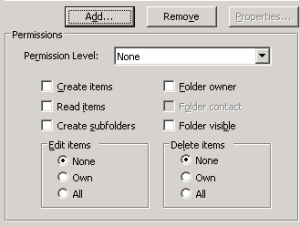
  • Click on the “Add” button, the contacts list will open upAdding Permissions to Your Calendar
  • Select the person you’d like to add to your permissions list and select from the drop down list of ‘Permission Level’ the type of role that user will have. As you click each role, you will see different options below being checked off. You can also customize yourself the role if the default ones don’t fit. For people to be able to view your calendar items they need to have “read items” checked. If you want to give people the ability to create calendar items (meetings) directly into your calendar, they also need “create items”. I usually only let my staff with “read” permission because I want them to send me a meeting invitation before they schedule something directly to my calendar. 

2.       Don’t simply ask people to come to a meeting by calling or emailing, send them a meeting invitation: Most calendar programs have this option, which emails the person with a meeting request that they need to reply to with “yes”, “no” or “propose another time” (those are the standard options in MS Outlook). This way you ensure they accept the meeting (which will automatically add it to their own calendars), and you can track who responded (I know this works well in Outlook but not sure in other platforms).

3.       Use the body of the ‘meeting request’ invite to add agenda items, links to documents, and other notes so that people can be prepared prior to the meeting.

4.       In your calendar, ensure you have some time blocked prior and after the meeting: This may vary depending on the type of meeting, but you may have to prepare or read the agenda or even collect information. As soon as you invite or accept a meeting invitation, decide whether you need some extra 15 minutes (or more) to prepare. The more prepared you are, the more productive your meeting will be especially if you’re running the show. Block that time prior to the meeting in your calendar as if it was another meeting adjacent to it. The same applies for the ‘after meeting’ time… if you were taking notes and have to prepare meeting minutes or if you know the meeting will give you a bunch of action items, you should allocate some time right after the meeting to transcribe your notes or assign tasks.

5.       Label the meeting appropriately in your calendar: MS Outlook users have some nice options here that few people bother to configure, which is a mistake. Lotus notes users can do the same thing and I bet other platforms have similar functions. In MS Outlook 2003 and 2007 you can color code your calendar items so that you can visually identify types of meetings scheduled throughout your week or month. I like this feature because when planning my week I can easily spot a day in which I have several conference calls and may want to schedule an extra call at another day (we all need a break from conference calls, right?) or vice versa. And here’s where I think you need to go a bit deeper than what Seth Godin recommended as types of meetings, because you will want to clearly see stuff such as:

a.       Off site meetings: for these you will need to allocate travel time before and after the meeting (going to and coming back to the office).

b.      Meetings that involve a conference room or other facility: my company has a video conferencing room, so I know that if have a meeting that will use that room I need to be 10 minutes early to ensure the system is turned on and working, so I like to see these types of meetings with a different color.

c.       Meetings involving your boss: you want to continue climbing the corporate ladder and so you should know not to arrive late at these and ensure you are prepared.

d.      Project specific meetings: you could have a category for specific project types (webinars, advertising campaigns, creative brainstorming, etc.) if those represent different preparations, time, or energy level required.

Want to start labeling your meetings? If using MS Outlook 2003…

a) Open your calendar

b) Right-click on any meeting and in the contextual menu that opens up click on “Label”.

Labeling meetings in MS Outlook 2003

Labeling meetings in MS Outlook 2003

c) You’ll see the default labels with colors showing up. At the very bottom of the labels list, there’s an “Edit Labels…” option.

d) Click there and a window will pop up showing all labels and allowing you to edit each entry.


If using MS Outlook 2007, you are lucky! In Outlook 2007 they got smarter and merged the labels from the Calendar with the categories from the Tasks. This means you can now share the same categories between meetings and tasks. Simply…

a)Open the calendar

b) Right click on a meeting

Creating meeting categories in Outlook 2007

Creating meeting categories in Outlook 2007

c)Select the “Categorize” option

d) A list will show up and you can click on “All Categories” which will bring up a window with all categories, colors, and options to add or modify existing categories.

6.       Bonus rule! When you get an email asking for you to go to a meeting (someone who clearly doesn’t know how to use the meeting invitation feature), simply click on that email and drag it to your Calendar icon (works in MS Outlook 2003 / 2007) and voila! A new meeting window will open with that email’s info in the body of the appointment details. Right after you do this, delete the email.


Know What Your Meeting is About

Labeling or categorizing your meetings can help tremendously in managing your time effectively. The types of categories will depend on the types of projects you’re involved in, the energy required in each type of meeting, and basically what you think will make sense. Start with a couple and you’ll see really quickly if you need more. My meeting types are:

  • Off site meeting: I like to know if the meeting will require me to drive to it, so I can plan accordingly and not schedule something right after it
  • On site meeting: for regular meetings held with my staff or in / around my office
  • Conference call / video conference meeting: for meetings that will require some setup and more preparation
  • Travel required: this means air travel and I use this to allocate my time going to and from the airport as well as time that I’m on the plane (this way no one will schedule a meeting for me while I’m 10,000 feet in the air and wonder why I didn’t show up)
  • Webinar: I have to personally oversee the setup of webinars we conduct so I need to tag these meetings accordingly
  • Work time: for certain projects, tasks and even working meetings with my staff I like to block some time to ensure we’ll get to it, so I created a category for “work time”.
  • Personal: going to the doctor, picking my son up from daycare and other chores that are not work related

Be smart at scheduling meetings and use your calendar to your advantage.

If you’re looking for some more tips (especially MS Outlook users) on meeting scheduling and best practices, check out this blog: http://www.theproductivitypro.com/blog/?cat=23

Of course, if you still have too many meeting to manage and that is what you think is killing your productivity, then you may want to read this interesting blog from Lifehack about killing your meetings


Enjoy life!


How to Use Social Media – Lessons from AMA Digital Conference

March 7, 2009

This past Friday (March 6) the AMA Tampa Bay chapter hosted an incredible full day event called the Digital Marketing Conference. The room was packet (the number I heard was 80 attendees) and a lot of information was flowing to and from the audience back to the presenters. Talking of which, all deserve credit here:

  • Deana Goldasich, from Magnetic, gave a thought-provoking presentation on web usability that took us for a ride on the evolution of websites since the early 90’s until today. I got a couple pages worth of notes from her presentation.
  • Ron Adelman, from WSI Marketing, discussed Search Engine Optimization (SEO) in a down-to-earth manner that was refreshing at the same time very entertaining. The guy really knows his stuff.
  • Lisa Cardarelli, from Bayshore Solutions, had a more standard powerpoint and although some of the slides were tough to read (10 point font and 15 bullet points per slide), they were packed with good stuff based on a recent client they worked with and how they improved their pay-per-click (PPC) campaign. Some good discussion about the integration between online and print advertising got everyone talking.
  • Brenda Young, from Marbay Group, shared her expertise on the solical media space by talking about what can be considered one of the top rules for any marketer around: Listen First! 
  • Albert Chen, from Google, flew directly from Boston to our cozzy Florida weather to grace us with his presence and gave a thoroughly entertaining presentation discussing what Google Can Do for You. I was prepared for a sales pitch but Albert delivered one of the best presentations of the day while at the same time informing us of all the great tools available for Marketers from Google.
  • Peter Contardo and Shaun Pope, from Endavo Media, gave us a great primer on monetizing online video, clarifying that although easy to create (anyone with a webcam can upload to Youtube), need some thinking before you can actually make money with video.
  • Peter Radizeski, from Rad-Info also known as the Marketing Idea Guy, and Shawna Vercher from the Society of Successful Women and the Huffington Post, delivered the most engaging presentation of the day. Forgoing powerpoint, they showed why they make the big bucks by doing a presentation in an interview style that provided a good respite from powerpiont and was also very educational and full of great tips and tricks on Integrating Blogging Into Your Marketing Strategy.
  • Chuck Palm, from Internet Podcasting Network, closed the day with “Social Media Mania – what should my business do about it?”. He reinforced some key messages we heard throughout the day and added some great stories about Twitter, blogs, and podcasting. The Zappos story about blue suede shoes stuck in my mind as a great example of social media, six degrees of separation, and pure luck 😉

The best of these events for me is actually the networking portion. Is great to be able to discuss your own challenges with other marketers and realize that you’re not alone out there… I met some great people and learned some stuff I can start using right now in my own company.

Just as a sidenote, I thought ironic the fact that for a “digital marketing conference” that focused on social media (blogs, wikis, twitter, facebook, etc.) the AMA Tampa Bay chapter didn’t have a blog, a wiki, or a discussion forum on their website where attendees could continue the conversation. Hopefully the board members also learned how to use social media and we’ll see it being adopted by the chapter.


Getting Stuff Done with MS Outlook

February 25, 2009


Note: the tips I give below work in MS Outlook 2003 as well as 2007 version. Outlook 2007 has even more features for helping you categorize stuff, but we’ll keep it simple for now and focus on the features available in both versions.

An Effective Marketer gets things done. He is known for his ability to complete tasks, get campaigns back on track, measure and make course corrections in a timely fashion and still handle responsibilities that are not even in his job description.  How does he do it? With focus and by tackling one thing at a time. 


If there is any one “secret” of effectiveness, it is concentration. Effective executives do first things first and they do one thing at a time.

  Peter F. Drucker, “The Effective Executive”


If we could just create our plans for the year and stick to them without having any additional requests or emergencies come up after that, life would be perfect. But no! Stuff keeps happening. Meetings here, there and everywhere taking up precious time, emails that keep coming, voice mails that keep getting through, and those pesky employees that just can’t function without direction. Life could be good, indeed, if you lived in an island alone. But since you’re reading this, odds are the life in an isolated island is out of your reach. So let’s at least try to get some stuff done, shall we?

Concentration is the main thing, as Peter Drucker said, but in order to focus you need to know what to focus on. Should you check out that email from the CEO that just came in and stop revising the ad copy? Or should you get to the action items discussed during the last staff meeting? Aha! So many things taking your time and attention that you can’t focus, huh? The answer is to first get organized.


Organizing your tasks Outlook Task Manager


There are several methods of organization being one of the most popular with technology folks the GTD (Getting Things Done) system. But whether you subscribe to GTD, to Autofocus, ZTD, Covey’s 7 Habits, or any other system you need to have a way of organizing and creating action items/tasks. That’s the core of getting stuff done and being productive. Some people like paper and pencil and carry notebooks around with them, pages filled with meeting notes, reminders, etc. Others use PDA’s , their iPhone, or a computer.   What most don’t realize is that they probably already have a pretty good tool for helping them organize their tasks, prioritize, and take action. That’s MS Outlook, used in most corporate settings to handle email but not fully understood from a task management perspective.


Getting to Know MS Outlook

First time I tried to use Outlook for more than email and calendar, I really didn’t like it. But I also had no idea of how to use it properly, I was just creating tasks and forgetting to check back on them and spent more time looking for a particular task than actually doing work. Well, those days are over because I realized that if you want to use Outlook for task management, it can actually be very effective. You can even incorporate GTD characteristics to make it more functional.

First: create categories

A light bulb went on in my head when I read Getting Things Done and he talked about creating a tickler folder and different categories for stuff. Common sense, obviously, but it just helped me see my workload in a different way. 
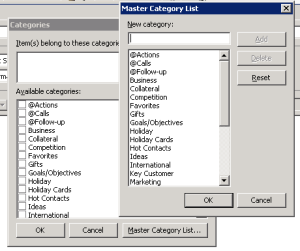
New Task Categories

So now in Outlook I have multiple task categories such as “Action” for things I need to personally work on, “Follow-up” for items that need to be checked upon later, “Calls” for calls I need to make, etc.  I also have categories for the type of work that needs to be done, for example “Collateral” for all work related to marketing collateral, “Website” for all

 website related stuff, and so on. This helps me because I can either check on all “Action” tasks and then check on all “website” related tasks and prioritize.

The default task categories in Outlook are OK but you need to create your own set of categories. When you create a new task, click on the ‘categories’ button at the bottom of the new task screen and then click on the “Master Category List” button. You will now see the ‘master’ list and will be able to edit, add, or delete categories.

Second: Decide on top categories

OK, now that you have categories you will be able to get all stuff you need to work or get done assigned to a category, or even multiple categories. Let’s say I need to review the copy for a new spec sheet. I will assign this task as “Action” (because is something I need to work on) and also assign it to “Collateral” (because is related to collateral materials). I like this ability to multi-tag or assign multiple categories to tasks, it can come really handy.
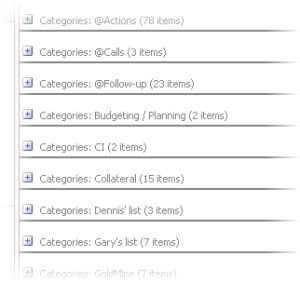
Task List in Outlook

But wait, there is more! Simply creating categories is not enough. Decide on your top categories, the most important ones. These are the action-related categories, such as “Action”, “Follow-up”, “Call”, etc. those generic but action-oriented categories (and not the specific “Collateral” or “website”, etc.) are the ones that will help you get stuff done. If 

a task is under “Website”, you don’t know whether is something that requires you to work on, to follow-up on, etc. but if a task is under “Follow-up” then the goal is clear. And you want these action-oriented categories to appear first on your Task Manager screen. Simply edit the category name and start it with an @ symbol. This will make it come first when you sort your tasks by categories (which you should always do). This way you have displayed first the action items in their respective categories.

Third: Create VDP Lists

After leaving voice mails for another manager for a week, he finally calls me back to see what I needed and I only have 10 minutes before he jumps on another call, and I have to scramble to go through the emails I sent him or look back at some notes I took to get the list of things we needed to discuss. And usually I forget one or two items. By creating the “@Follow-Up” task category I was then able to add tasks to follow up with that manager on a number of different items and be more prepared for when I finally was able to catch up with him, but still that required to browse through a list that contained not only follow-ups with him but with other people as well. That’s when I started creating VDP lists (for “very difficult people” to get a hold off). These are categories that have that person’s name, like “Jonn’s List” or “Mary’s Lists”, etc. When there’s an action item that requires me to check with them or follow-up with them, I can add that task to that person’s specific list and when I am finally able to get a hold off them, I open that category in Outlook and go through the task items.

Instead of the VDP list, you can also create one for different projects (Tasks associated with Project ABC that need to be discussed during the status meeting every other week) or for a specific meeting that’s held every month. Let’s say you have a staff meeting or a management meeting where managers of all departments get together to discuss several items. Well, as you wait for the next month’s meeting, you can start allocating items in task manager for that specific category, let’s say “Monthly Management Meetings”.  Now, before GTD zealots and the like start picking this idea apart, remember that sometimes the action you need to take is simply “bring up idea about xyz during next management meeting”. So if you can capture that item and properly categorize it, you will be ready when time comes.

Fourth: Prioritize Your Tasks

Where some of the productivity systems fall apart is on the prioritization part. Simple to-do lists fail because you never seem to be able to get through all those items on the list, in fact at the end of the day the list has grown even more! And for all good that GTD, Covey, and other systems give you they never get into too much detail about how do you decide what you should do first. Yes, that’s where YOU have to start making decisions based on your goals, your availability, your resources, and on what’s important to you. Deciding what’s important and what’s urgent (as Covey likes to put it) is a critical thing if you want to become effective, but is also subject for another post. Let’s just assume for now that you know what needs to be higher and lower priority, so you need to get your tasks in Outlook to reflect that.

If you simply create a new task and give it a category, let’s say “@Actions”, you will have a bunch of tasks under that category. Which one do you do first? Well, if you follow GTD or 7 Habits you will (and should!) stop at some point during the week to evaluate your tasks, your state of mind, your soul and what you need to do in the next few days. This is when you stop ‘doing stuff’ and go to ‘processing stuff’, which also means that at the end you need to 
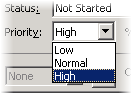
Outlook Task Priority

prioritize.

So either you do this each time you create a task or when you stop to evaluate your time and open each task and assign it a priority. Outlook gives you “low”, “medium” and “high”. Now you not only have tasks associated with different action-items (follow up, call, etc.) but you have prioritized them.


Go to “View” menu, select “Arrange by”, “Current View”, select “Customize Current View”. Make sure that “Group by” is “Categories (ascending)” and in the “Sort by” click and select it to be “Priority (descending)”. This way your Task Manager view in Outlook will show all tasks grouped by categories with higher priority tasks showing first within the categories.
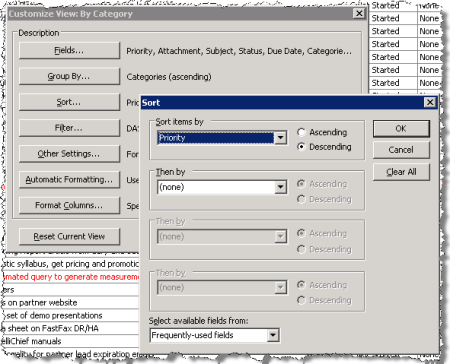
Outlook Custom Task View

Get Stuff Done This Week

If you need another yet another layer of prioritization, you can also create a category called “@@This Week” (the @@ signs will guarantee it will show up on top as the first category, make sure to configure the “view” to group by categories though) and as you go through your task list on a Friday afternoon or before you start work on Monday, you can look at the high priority tasks in each category and also assign it to the “@@This Week” category. When you’re done with one task you can simply go back to MS Outlook Task Manager, look at the next task listed under your This Week category and get it done.

Capture Tasks All the Time

As I explained in a previous post, you can simply drag email messages to your Task Manager icon in Outlook (works for Outlook 2003 and 2007) and that email will become a new Task Item. Easy, simple, and efficient! Also don’t forget the killer CTRL+SHIFT+K keyboard combination that will create a new task item wherever you are in Outlook. As you get emails, make sure you process them and if there’s an action that needs to be taken, use the proper categories and prioritization.

If you want to know more about processing emails, getting your inbox empty, and working more productively you should definitely check out 43Folders and their “inbox zero” series of articles and a great Primer on the GTD system is the blog post at 7Productions.

Next: Is your calendar working for or against you? Some simple tips for MS Outlook Calendar that will help you become more productive.


Only One Thing Matters in Online Surveys – WIIFM

February 16, 2009

Marketers have several tools at their disposal in their arsenal of marketing weapons, one of which is surveys. You can’t be a marketer without having done some surveys in your life, otherwise where will you have gotten  your data from? How did you target and fine tune your messages?

With the advent of cheap online survey software, everyone it seems is creating and sending out surveys. The good surveys, or should I say effective surveys, are the ones that get people to fill them out giving you enough insight into their market/purchasing process/buying habits/etc. that will positively affect your campaigns.

Marketing guru Seth Godin has recently posted a short but very good list of how you can make better surveys, but he misses one very important point. WIIFM (What’s In It For Me?). That’s what the reader will be asking herself as she reads and opens your survey.

The benefit to the survey respondent needs to be obvious. Sure, in some cases people may respond simply because they love your company/brand and that’s great, but you should also strive to get those who are not necessarily loyal customers to respond, otherwise the survey may end up not telling you the whole truth. What will they get out of it? There are several options:

  • Prize drawing (like an iPhone or other gear)
  • Cash (or gift cards)
  • Book
  • T-Shirts and other corporate branded giveaways
  • Knowledge

Of all the possible offers, Knowledge is probably the most enticing. Sure, if you give away a brand new tech toy people will likely get excited about the possibility of winning it, but if you give away Knowledge you will have an even better chance of impressing the respondent. This knowledge can come up in several different ways, such as a compilation of the survey results, a more personalized benchmark of your questions versus the survey population, a whitepaper about the subject at hand, and many others. Few people do it this way because it takes time and money.

Regardless of what you are offering (and the offer should vary based on your target population for the survey, your industry, etc.) you will be far more successful if you think in terms of WIIFM – make it attractive enough that they will want to spend a few minutes answering your questions.


If you’re gonna copy, make it right

February 15, 2009

An interesting blog post by Jason Cohen at OnStartups.com  discussed why you shouldn’t copy other companies just because they were successful at what they do. He uses examples like 37Signals, Copyblogger, FogCreek Software, Zappos, and make a good case for trying to think for yourself instead of just following what others are saying.

His controversial post caused quite a stir whith some people taking it personal, others agreeing with him and even others that were lost completely as to what the message he was trying to say was. Why do I care? Well, for one I’m interested in controversy and believe that dissident voices can often give us great insight into what we thought was a certainty. How often have you presented an idea to your team or to the company’s senior management only to get asked questions you never yourself considered before? My second reason for liking that post is that I agree with what Jason said.

Let me explain. Although I admire Joel Spolsky and think he’s right on the mark 99% of times, I wouldn’t simply copy his business model or his ideas and try to use them in my own company. The simple fact that it worked for him doesn’t prove that it will work for everyone. Another person I admire is Jack Welsh (former CEO of GE) but I also wouldn’t be as ruthless as he was during his tenure simply because that is not my style. Can you be as successful as someone else without using the same methods? The myriad of companies out there that are successful and yet operate completely different (Southwest and JetBlue, Yahoo and Google, GM and Toyota, etc.) are the proof.

Did Jason take some stuff out of context? Maybe. But the overall idea was interesting and valid, especially for us mere mortals that look in awe at others that have been more successful (however you define the term) and have to be brought back down to earth and go back to work.

The lesson here translated into the marketing realm is that you should always keep an eye out for the competition, for your partners, for other similar companies, for what is said to be working and why. What is the best ad campaign you’ve seen recently? Which is the best website? Who in your industry is the king of PPC and SEO? This is all good food for thought but beware of simply copying what others are doing. You competitor may have a very good reason why he decided to create a blog on his website and why he spent thousands on that slick direct mail piece but it doesn’t mean you should follow suit. Watch, learn, absorb all the good and bad then translate it into your own context. 

Effectiveness doesn’t come from copying, it comes from making it right for your organization. Do what works for you, not what have worked for others.